Appearance
Server backups
Akamai Cloud (Linode) snapshots
All servers hosted within the morphsites Akamai Cloud account have daily snapshots turned on. This setting is on by default. Any instances created, whether through the Akamai Cloud interface or through a third party API (Laravel Forge for example), will automatically be enrolled to carry out daily snapshots.
Snapshots take a copy of the whole server and can be booted to from a separate instance or replace the current instance restoring it to the state when the snapshot was taken.
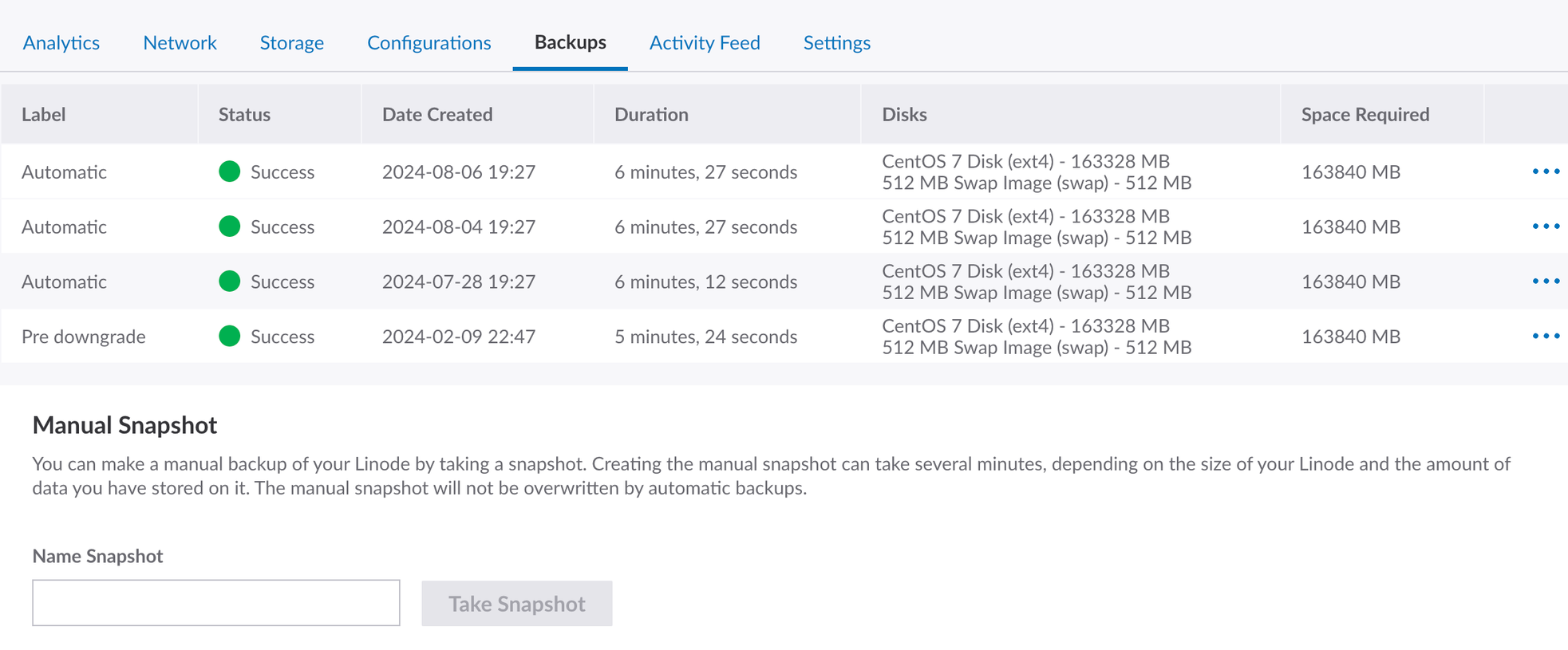
Snapshots can be viewed, used and triggered within the backup tabs for each instance on the Akamai Cloud interface.
Manual snapshots
If a backup is required before a large or high risk change a manual snapshot can be taken as a precaution. A descriptive name needs to be provided for the snapshot and then adequate time needs to be given for the snapshot to process. You will be notified in the console of the progress and completion of a snapshot.
Please note, only one manual snapshot will be kept per instance. When you trigger a manual snapshot any previous manual snapshot listed will be removed.
Automatic snapshots
Automatic snapshots follow a schedule and set of rules outlining how long a snapshot will be preserved for.
- Each night a complete snapshot is taken. The snapshot will replace the snapshot from the preceding night.
- On a scheduled day each week the snapshot will be preserved and not be replaced by the nightly snapshot. This snapshot will be preserved an additional week and then removed.
Once the instance has been in place for a couple of weeks there should be 3 automatic snapshots stored.
- The snapshot from the night before
- The snapshot from the defined Day of the Week
- The Day of the Week snapshot from the week prior
Settings
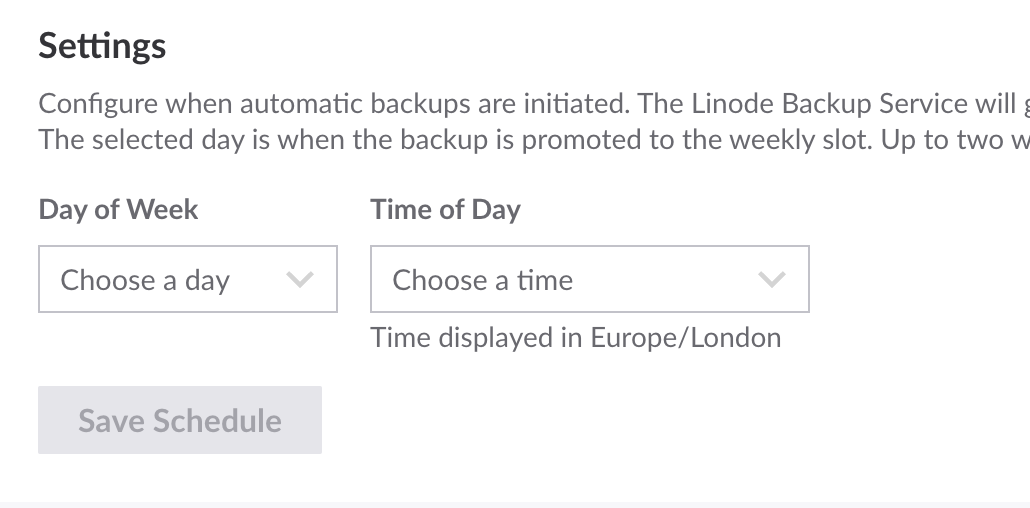
You can control 2 factors
- Time of Day - Define the 2 hour slot within which each snapshot will be taken daily
- Day of Week - Define the day of the week the weekly snapshot will preserve.
⚠️ morphsites recommendations
Settings should be set to have the Day of Week set to Sunday night/Monday morning. If the snapshot is occurring on a Ubuntu based server, the snapshot should be configured to have the Time of Day window end as close as possible to when unattended upgrades are configured to begin.
Restoring backups
Snapshots can be easily used. Each stored snapshot will have the option to either:
- Restore to Existing Linode
- Deploy New Linode
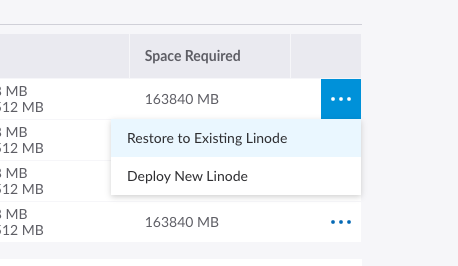
For the majority of cases deploying a new Linode will be needed. This will allow you spin up a complete copy of the server which can be accessed directly through the assigned IP address with the same access credentials. Data can be retrieved and the created Linode can then be removed.
Note Standard Akamai Cloud tariffs will apply to new Linodes created, so please keep activation time minimal.
If there has been a critical failure on the original Linode, reassigning the ip to the newly deployed Linode could be a viable option.
Akamai Cloud Block Storage backups
Akamai do not offer an automatic backup solution for their block storage. Block storage instances are backed up separately and this is currently handled by Snapshooter.
The only usage of block storage currently is on prod1.uk.morphdigital.net mounted here: /mnt/prod1_uk_userfiles
Snapshooter
Snapshooter prod1.uk.morphdigital.net backup job
Snapshooter is configured to take a nightly backup of the whole /mnt/prod1_uk_userfiles/live/ directory and store each sub directory separately. These backups will be preserved for 15 days.
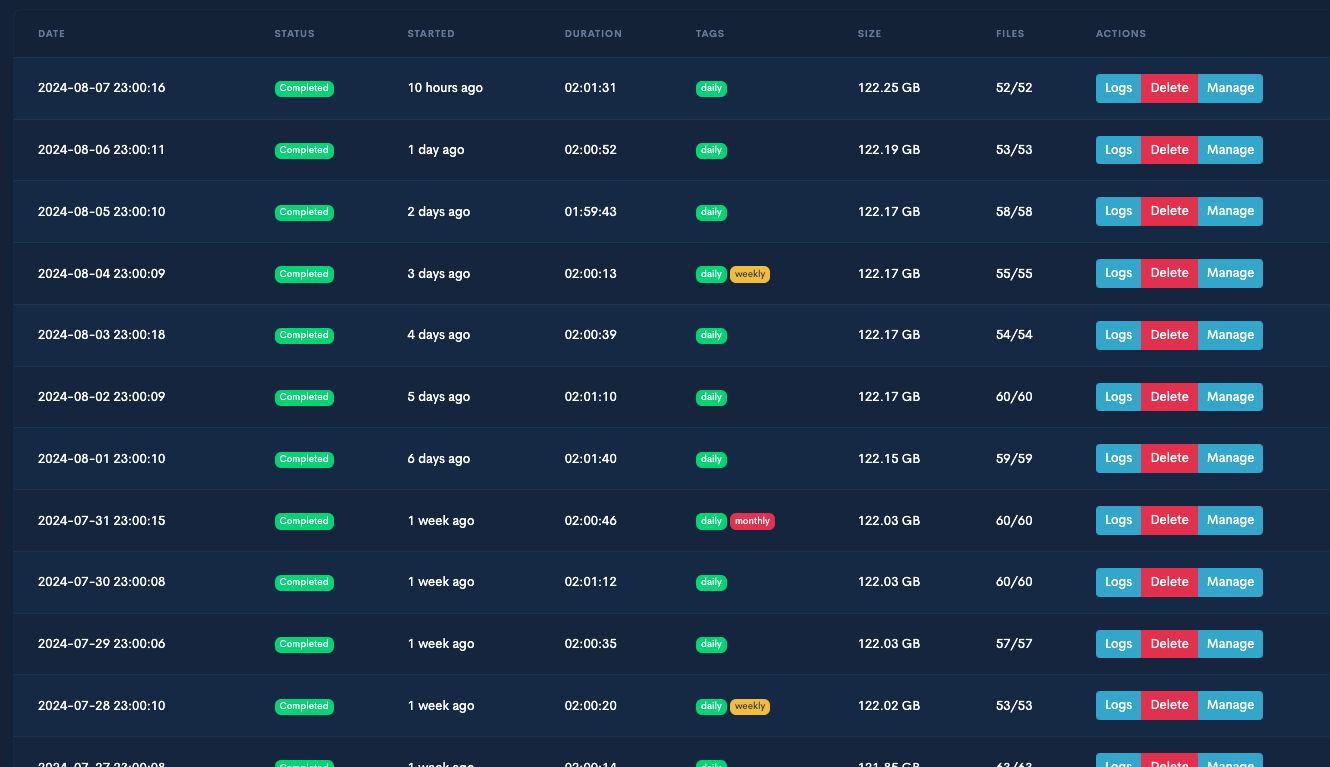
Each backup occurrence can be managed separately and tar zipped directories can be restored from within the interface.
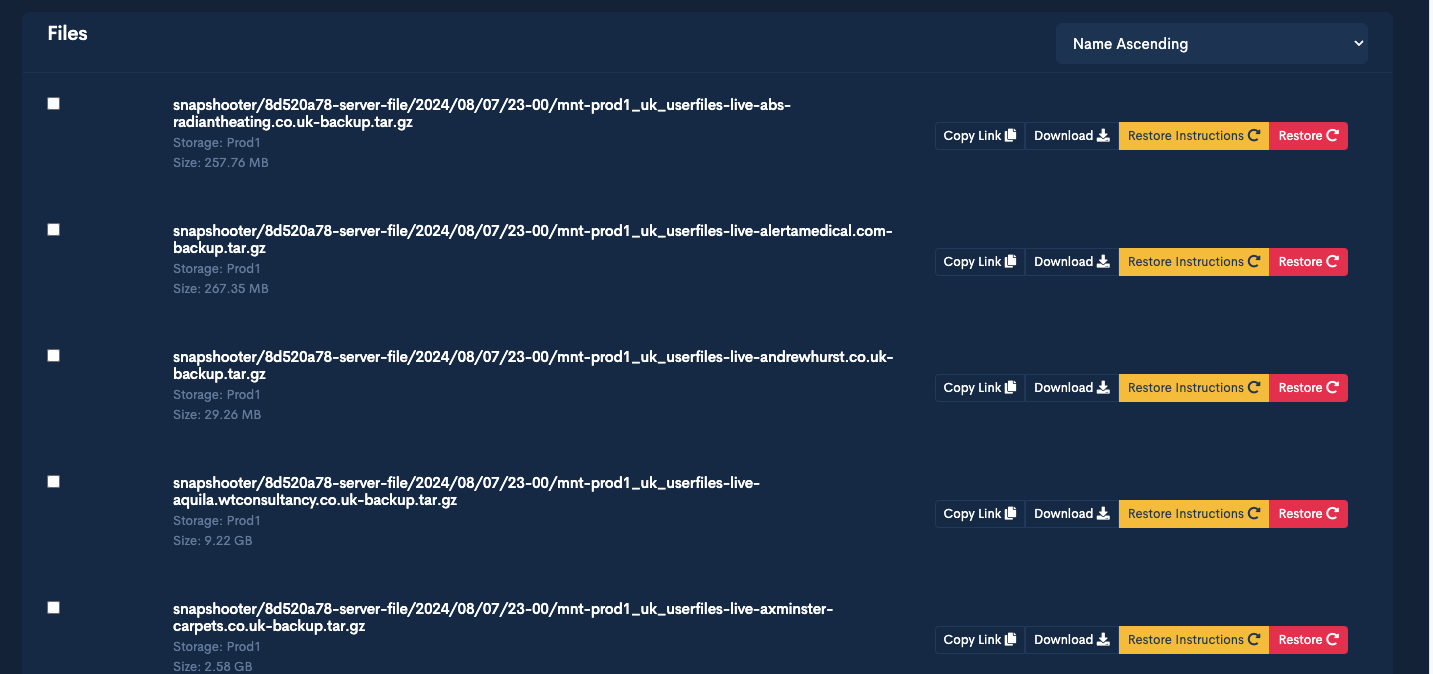
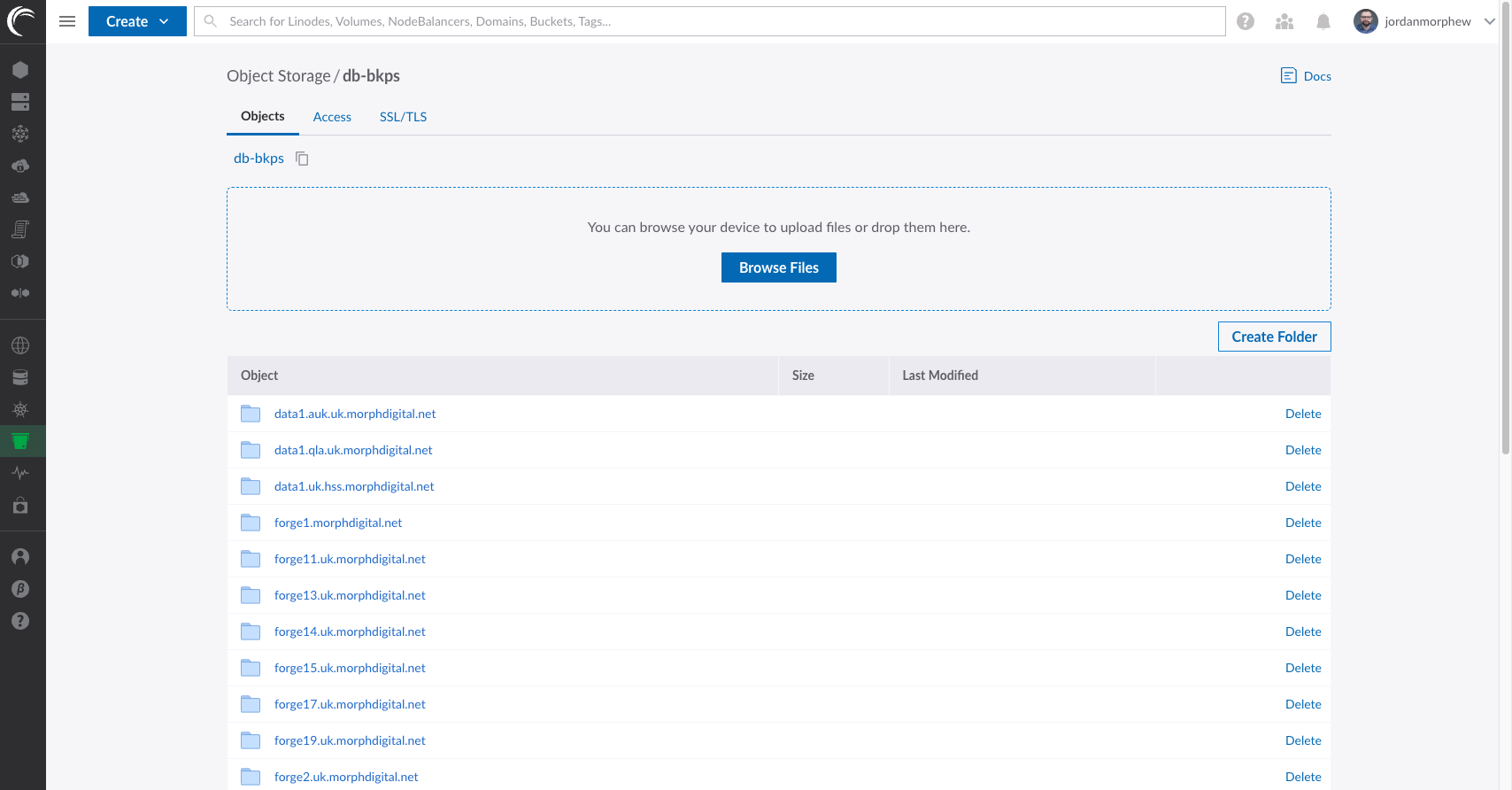
The backup storage location is currently Akamai Cloud object storage and can be accessed directly with an access key, or through the Akamai Cloud console.
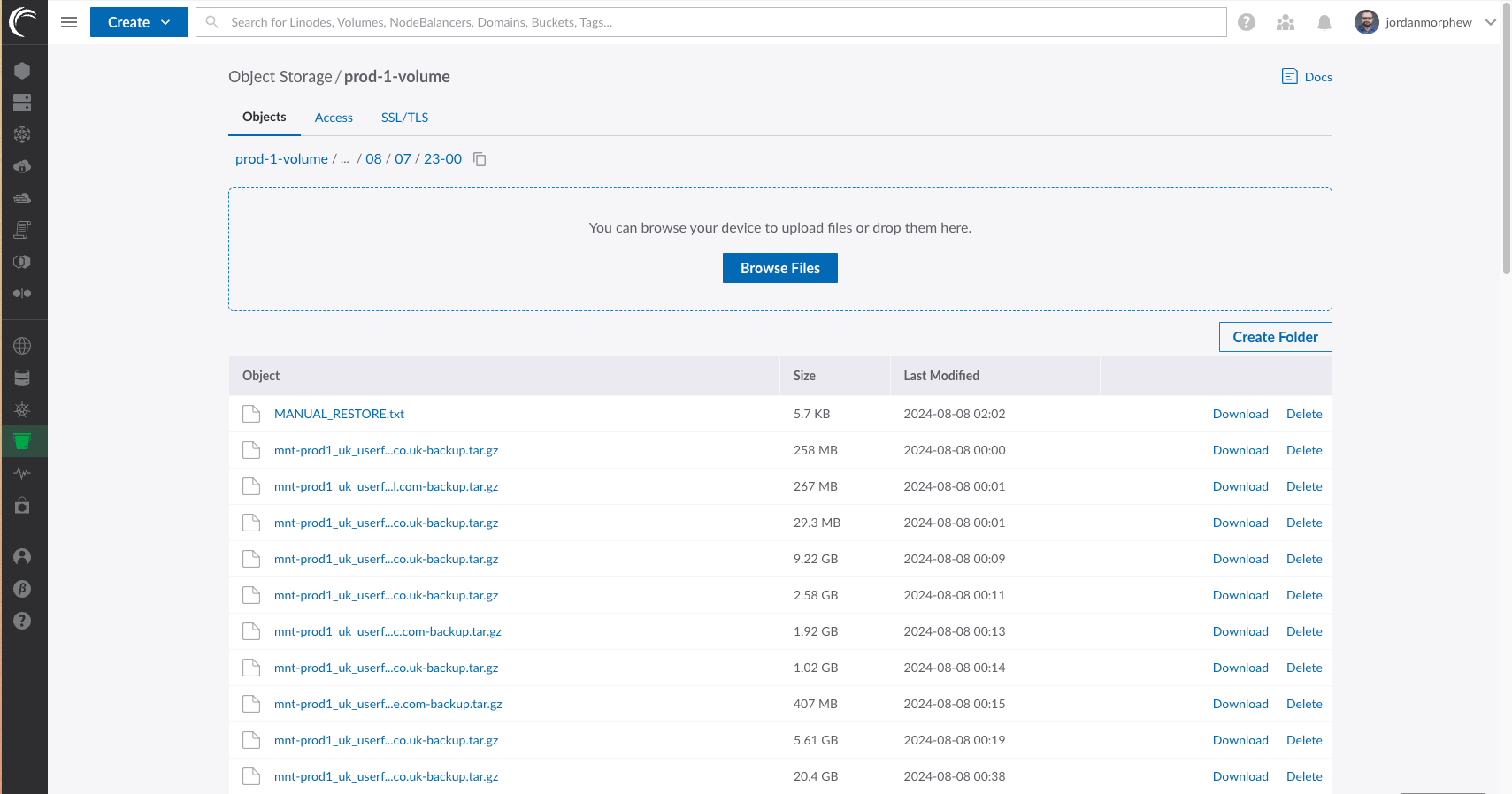
An example of a nightly backup location within object storage
Laravel Forge database backups
morphsites currently uses the Laravel Forge Business tier which includes a database backup feature. As Akamai Cloud snapshots can take a long time to restore, it is well worth using this functionality to be able to access database data quickly if required.
Configuration
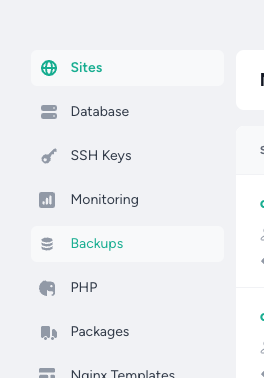
Each server that is configured to include MySQL, MariaDB or PostgreSQL will have a tab enabled to configure backups.
Multiple backup configurations can be created to backup to various databases to multiple locations.
When setting up a server with a SQL database it is recommended to backup all databases to Akamai Cloud object storage.
Configurations will be very similar each time with only a few server specific differences.
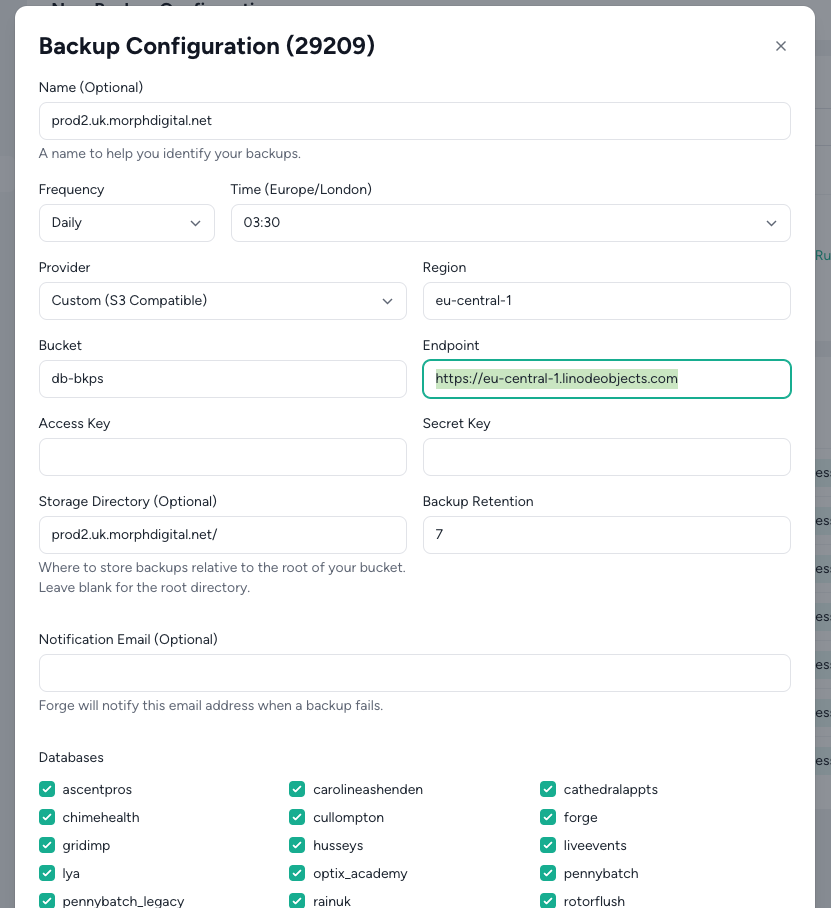
- Name: Server hostname
- Frequency: Daily
- Time: Any out of hours AM time. Consider when the instances snapshots and unattended upgrades will occur to avoid conflicts.
- Provider: Custom (S3 Compatible)
- Region: eu-central-1
- Bucket: db-dkps
- Endpoint:https://eu-central-1.linodeobjects.com
- Access Key & Secret Key:Stored in Bitwarden
- Storage directory: Server hostname
- Backup Retention: 7
- Databases: Select All Databases or select specific databases. Please note, if the latter is chosen when any new databases are added later on these will need to be manually added to the backup schedule configuration.
Managing/restoring database backups
Within the backups tab the most recent backups will be listed. The gzipped files can be listed easily and downloaded separately if required (also useful is setting up a local environment with live data).
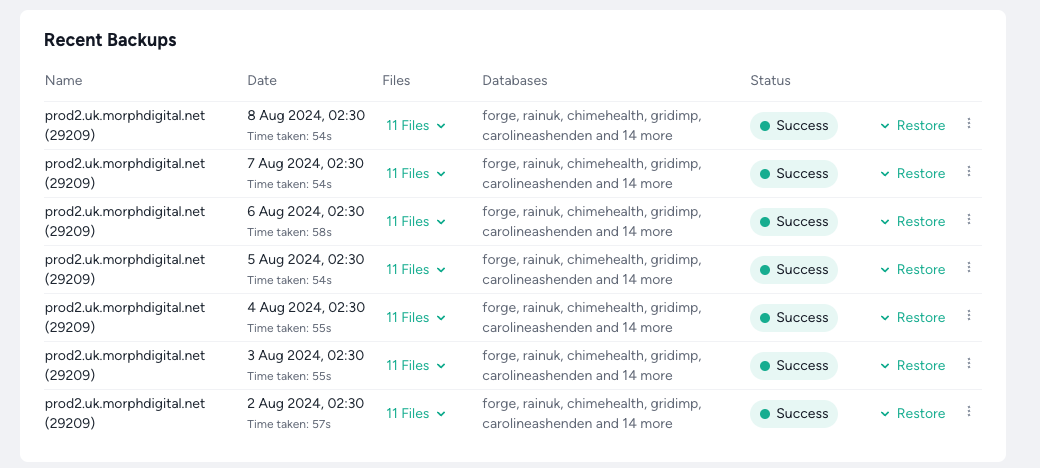
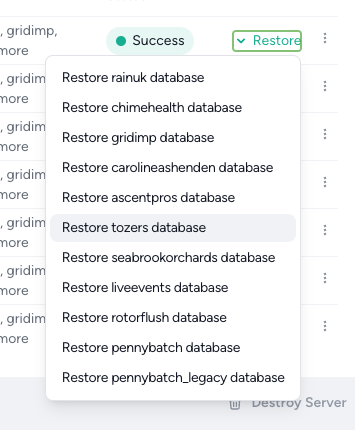
Each individual database can be restored from within this tab as well which would only be required in the case of a catastrophic database failure and required a full recover.
Manually triggering a backup can also be completed from within the Backups tab, but before doing so ensure to check how long a backup will take to process. Server performance is slightly affected while backups are being taken.

The backup location can be found within the Akamai Cloud console here. Backups can be managed and/or downloaded directly from here as the need arises.